As smartphones’ displays are getting much bigger these days, it becomes harder for users to reach/touch every part of the screen. It is almost impossible to type with one hand on a phablet. Now, Google is giving you the ability to move and resize the keyboard anywhere with Gboard.
The new feature is named Floating in the options, which the keyboard will float on top and can be resized and moved around. It was first discovered by Android Police in September, and now is started rolling out to the public.
To access this feature, you need to first tap the “G” or right arrow button on the top of the keyboard. Under the menu (three dots), you will see the option, called “Floating”. Once you press it, the Gboard will shrink and pop up from the bottom. You can drag the keyboard and move it around the screen, by holding the arrow keys below the keyboard. You just drag the keyboard all the way to the navigation bar, to return it to its docked position.
The floating keyboard mode offers more flexibility than the original built-in one-handed mode. It can be moved freely in both vertical and horizontal directions.
If you have yet to see the feature appeared on your Android smartphone, make sure the Gboard App is updated to the latest version. It should be rolling out to all users in the near future.
Feel free to leave comments below, if you have any opinion about this website. Share the website around if you enjoy reading it. Subscribe to our Newsletter or follow our Google+, Facebook and Twitter.
Support this website simply by shopping in Amazon. It will give us small kickbacks, if you use the above affiliate links to make any purchases, which will help us grow.
In August, NVIDIA announced the new RTX 20-series graphics cards with Turing micro-architecture and Ray-Tracing technology. Yesterday, NVIDIA silently introduces an updated GTX 1060 with GDDR5X memory, which is one of the most popular gaming graphics cards for mainstream consumers.
This is not the first time NVIDIA makes a different version of GTX 1060. It originally came with 3 GB/6 GB of GDDR5 memory at 8 Gbps, and later got updated to 9 Gbps. Now, the new variant is equipped with faster GDDR5X memory, which should at least run on 10 Gbps or more.
Other than the memory type and speed, the specifications of the new GTX 1060 remain the same, which has 1280 CUDA cores on the Pascal GPU micro-architecture. The GPU is clocked at 1506 MHz and can boost up to 1708 MHz for the Founders Edition card. The TDP is set at 120 watts. The GDDR5X memory is running on the same 192-bit bus, that can provide bandwidth up to 240 GB/s (10 Gbps). It is about 11.1% larger than the 9 Gbps model’s 216 GB/s.
The higher bandwidth should result in slightly better performance, and continue to operate perfectly for 1080p and 1440p gaming. At the same time, AMD is rumored to release the Radeon RX 590, which is a refreshed version of the RX 580. It would be interesting to see how the new GTX 1060 stack up against the RX 590.
Feel free to leave comments below, if you have any opinion about this website. Share the website around if you enjoy reading it. Subscribe to our Newsletter or follow our Google+, Facebook and Twitter.
Support this website simply by shopping in Amazon. It will give us small kickbacks, if you use the above affiliate links to make any purchases, which will help us grow.
It has been a very exciting year for high speed storage, with different manufacturers releasing their models of SSD (Crucial, Intel and Gigabyte). Yesterday (16 October), Corsair also announced its latest Force series MP510 PCIe NVMe SSDs to the public.
…the MP510 leaves traditional SATA 6Gbps and even previous generation M.2 SSDs in the dust.
The MP510 SSDs will be available in four sizes, including 240 GB, 480 GB, 960 GB and 1920 GB. All models will be using the M.2 2280 form factor, which should keep the drives compact. The SSDs will be transferring data though its PCIe Gen 3 x4 interface. It supports the NVMe protocol.
The MP510 SSDs are using the new Phison PS5012-E12 NVMe controller, along with Toshiba’s 64-layer 3D TLC NAND flash. According to Corsair, the drives can deliver sequential read performance at about 3480 MB/s and write at up to 3000 MB/s. The MP500, previous generation SSD from Corsair, only does read at “only” 3000 MB/s and write at around 2300 MB/s.
The SSDs are backed by a 5-year warranty. They should be available to purchase worldwide now. You can visit the local or online resellers for pricing.
Feel free to leave comments below, if you have any opinion about this website. Share the website around if you enjoy reading it. Subscribe to our Newsletter or follow our Google+, Facebook and Twitter.
Support this website simply by shopping in Amazon. It will give us small kickbacks, if you use the above affiliate links to make any purchases, which will help us grow.
Have you ever thought of playing PC games on a different location? Maybe using the large screen TV in the living room? It will be costly and wasteful to purchase another gaming rig just for this purpose. Instead, you can use Steam In-Home Streaming to stream the games from you primary machine.
What is Steam In-Home Streaming?
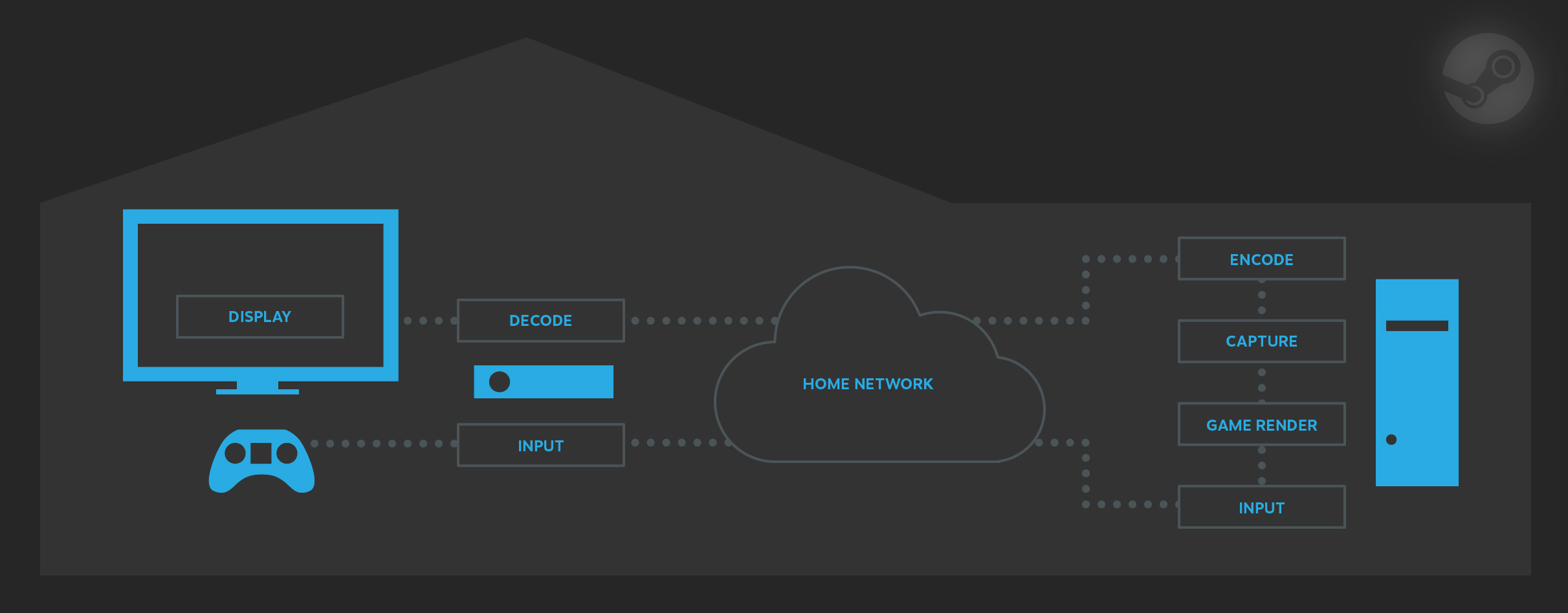
Photo from Valve/Steam
It is a built-in feature available for everyone, which allows users to run the game on one computer and stream the content (game audio, video and input) to another computer through their home networks. Ideally, a more powerful, capable machine with a dedicated graphics card will handle the rendering of the game, while a slower machine or laptops on the other end.
Steam In-Home Streaming also supports cross-platform streaming. You can in fact stream a Windows-only game to a Linux or macOS system without any problems.
Basic Requirements
A host computer with Steam software installed, preferably has a dedicated graphics card
A client computer with Steam software installed
A fast home network. It is recommended to use wired (Ethernet) connection to reduce latency, if possible. Wireless connection can still work, but please ensure you are using 802.11n or 802.11ac.
Set-Up Procedures
You will need to connect the two machines to the same local network, such as 192.168.1.1 and 192.168.1.2. After that, login with the same Steam account on both computers.
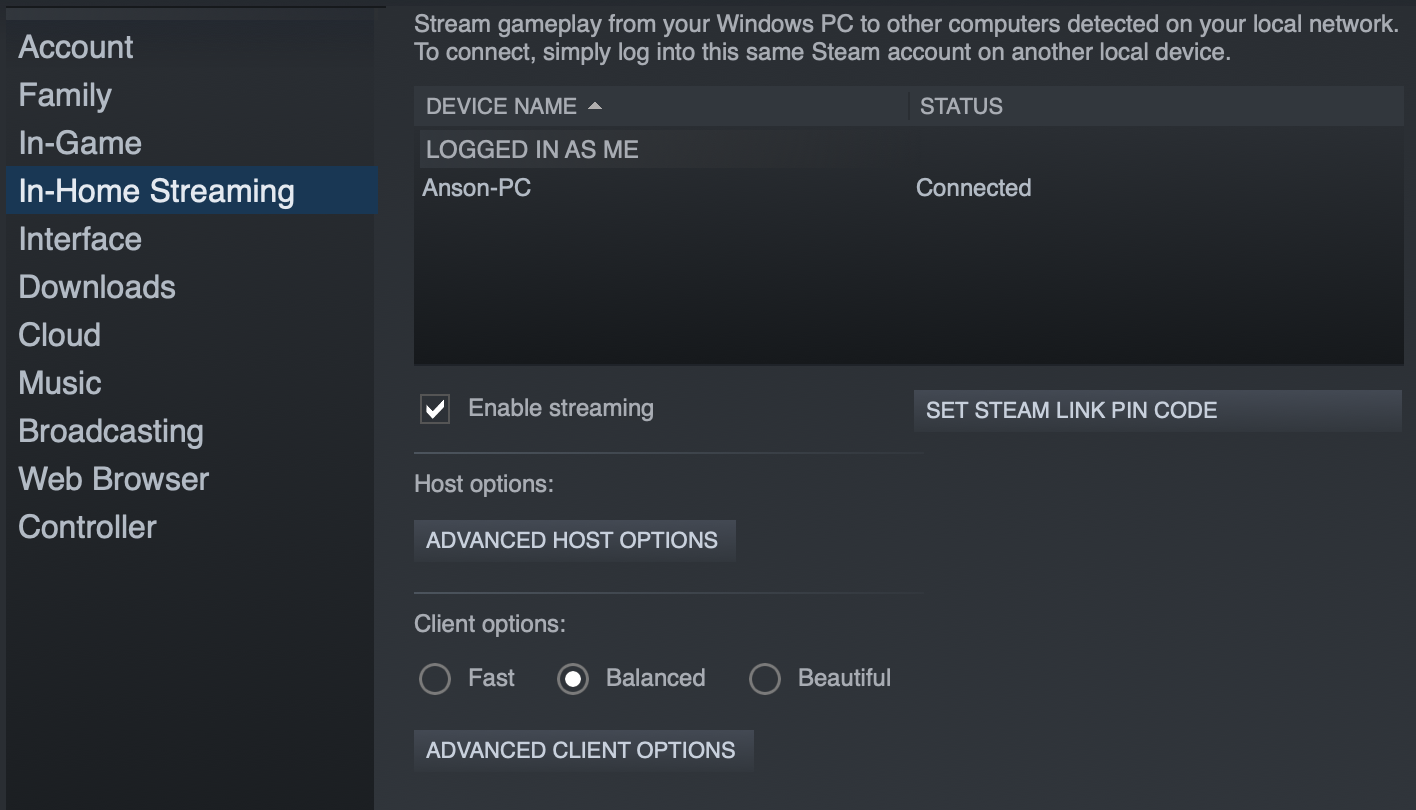
When you open the settings menu, there is a tab called “In-Home Streaming” in the sidebar. You will have to tick the “Enable streaming” box. You will also see all the connected and available computers in the network.
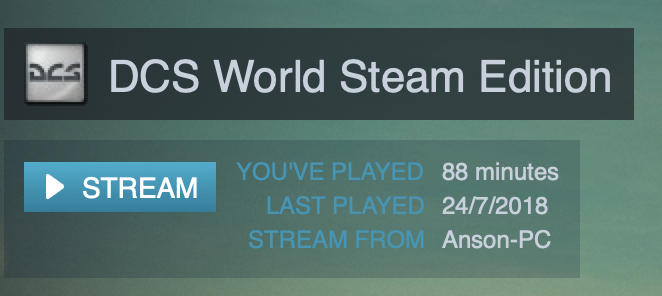
Click “Stream” to start playing in your game library. It will indicate the name of the host PC on the side.
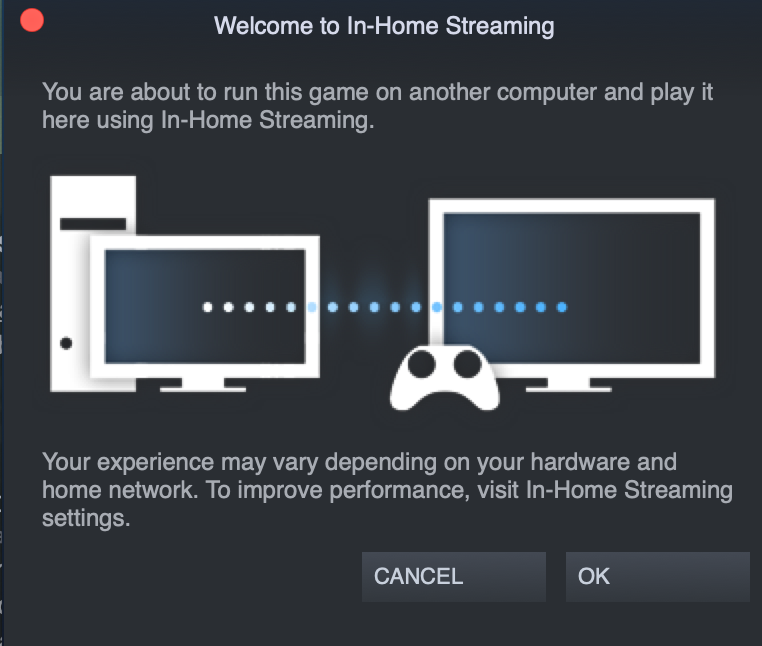
A pop-up may appear to inform you, that the game will be streamed from another computer in the network. Press “OK” to continue. The game should start within a few seconds.
Overall, using Steam In-Home Streaming is very simple and straightforward. However, to get the best performance and experience, you can tweak some settings to optimize the process.
You can enable hardware encoding to harness the power of your GPU to render the games in a more efficient way. Furthermore, you can adjust the number of CPU threads to encode the stream. If you have a compatible router, you can switch on network traffic prioritization, which should provide more bandwidth for streaming. For the client PC, you can turn on hardware decoding to utilize the GPU.
If you experience any problems, you can visit Steam support page or its community, which should give you some useful advises.
Feel free to leave comments below, if you have any opinion about this website. Share the website around if you enjoy reading it. Subscribe to our Newsletter or follow our Google+, Facebook and Twitter.
Support this website simply by shopping in Amazon. It will give us small kickbacks, if you use the above affiliate links to make any purchases, which will help us grow.
A mechanical keyboard can be expensive, especially those with per-key RGB backlighting. But the tactile feedback from each key stroke cannot be easily mimicked by normal membrane keyboard. Does it worth spending money on a budget mechanical keyboard, like the TECWARE Phantom RGB? Let’s find out.
Unboxing
The Phantom RGB comes in a traditional long cardboard box. On the front, you can see both the “TECWARE” logo and the model name, as well as a outline of the shape of the keyboard. The specification list, including the physical dimensions, is printed at the back.
A few key features have been highlighted as well, including SMD (Surface Mounted Diode) LED, modular mechanical switches, double-shot ABS keycaps and full N-key Rollover support.
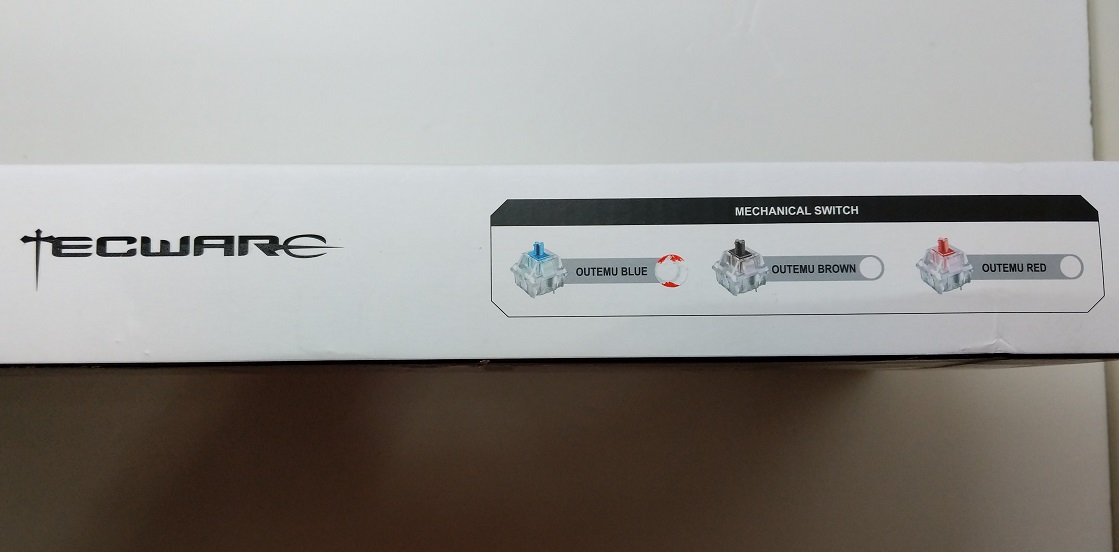
The Phantom RGB provides a total of three mechanical switch options (Blue, Brown and Red). All switches are made by Outemu. Our sample is using Blue switches with a distinct click.
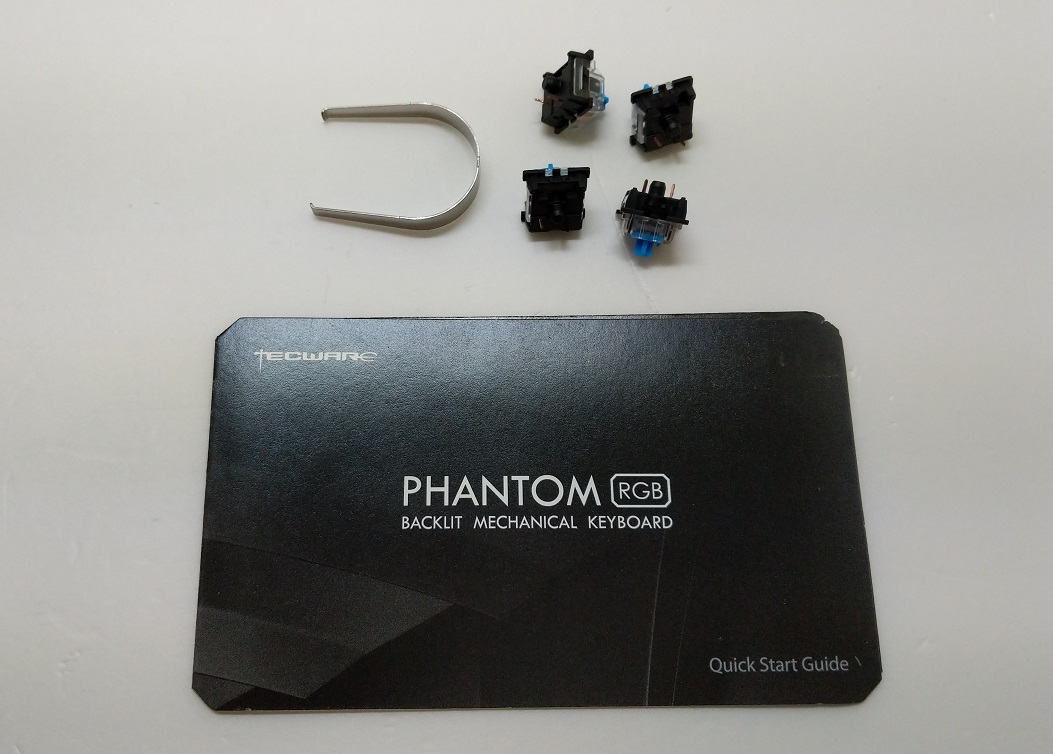
Apart from the usual quick start guide, TECWARE also includes a keycap puller and four additional switches for replacement.
TECWARE Phantom RGB Mechanical Keyboard
The Phantom RGB is a full-sized 104-key keyboard, with the number pad on the right side and function keys on the top. You can find more information about this specific keyboard at the back, such as the serial number and power draw (5.0 V/0.25 A). There is also a cable routing channel, that allow the USB cable to come out from either the right/left or middle.
You get three white LEDs above the number pad for the usual Scroll Lock, Caps Lock and Num Lock.
The keyboard’s body is mainly made out of hard plastic, but there is a metal plate on top for increased rigidity, durability and looks. The Phantom RGB has a “floating-keys” design, which no frame is surrounding the key switches. All the keys are elevated above the surface.
A small subtle branding, ‘PHANTOM’, is located on the front side. The keyboard uses double-shot ABS keycaps with transparent letters on top, to allow light to pass through. The keycaps feel solid and durable, in my opinion.
As most of the other keyboards in the market, the Phantom RGB has two extendable feet. There are anti-slip rubber pads to prevent the keyboard from moving around on your desktop. You can also find a useful keycap puller hiding at the back.
Yes, the Phantom RGB can let users to swipe out the included key switches. Once you pull out the keycap and switch, you will be able to see the blue printed circuit board behind. You will need to align the new switch with those two contact points on the PCB. The switch has a translucent plastic top cover for showing the RGB lights.
If you would like to use a faster, more responsive key switch, such as the RED, on the WASD keys for gaming, it will be a very easy job to do in the Phantom RGB.
TECWARE includes the same type of switch out of the box, which could still be useful in case the default one start malfunctioning.
The USB 2.0 connector is gold-plated, and the 1.8 meters cable is thick and braided.
Review
Design
In my opinion, the Phantom RGB keyboard looks pretty with its simplistic design, with no aggressive shapes. The keyboard is compact at only 45 cm wide, which the narrow side bezels are one of the contributing factors. The metal backplate also adds rigidity to the keyboard frame. The overall look of the Phantom RGB definitely suits the majority of the consumers.
Because of using double-shot molding, the lettering on the keycaps will never worn off over time. The surface of ABS keycaps tends to become shinny after a long period of usage, because of the oil on our hands. However, it is too expensive to use PBT keycaps for a budget keyboard.
Outemu Blue Switches
All Outemu switches are built to lasts for about 50 million keystrokes. For the Blue variant, it aims to provide a tactile and clicky feedback, while requiring about 60 grams of actuation force. The actuation point is after 2 mm. The Outemu Blue is a clone of the Cherry MX Blue. When typing, it will generate a satisfying click/bump once you reach the actuation point. Please note that the switch will make quite noticeable noise.
Outemu Red: Linear (50 grams)
Outemu Brown: Tactile Bump (55 grams)
RGB Lighting
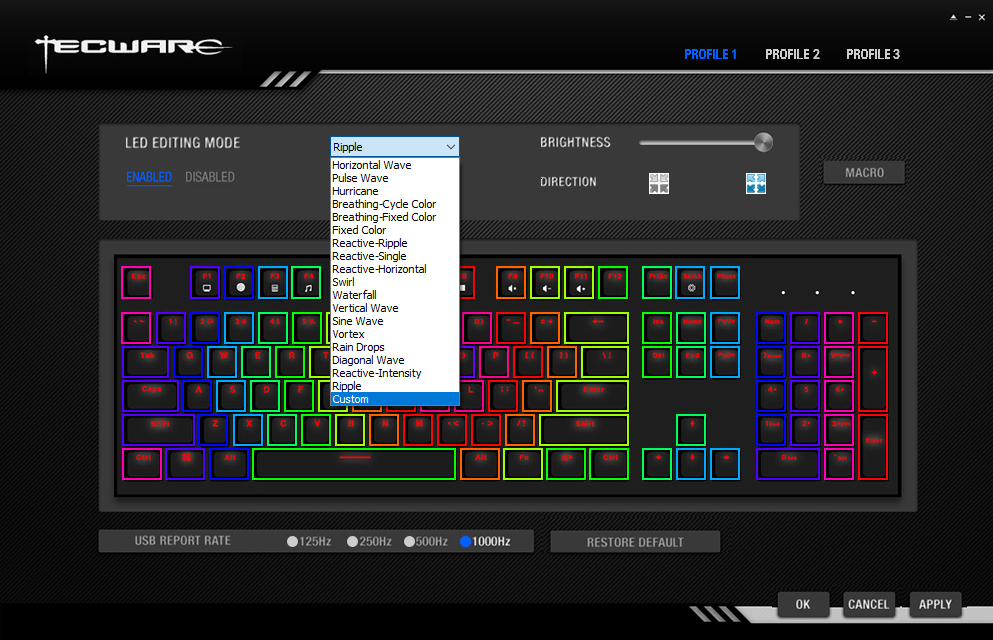
To control the RGB lighting of the keyboard, you can either download the driver software from TECWARE, or adjust using the “Fn” key. However, you will get less customization without the software. There are a total of 18 different preset RGB lighting effects, such as waves, ripple and breathing. You can also alter the brightness of the LEDs and save each setting as profile.
The LEDs of the Phantom RGB are all surface-mounted on the PCB, not inside the switch housings. The LED light will have to pass through the both the switch housings and the keycaps. The illumination is even and vibrant, but I would like it to be slightly brighter. Because of the floating-keys design, light is diffused around each key and create a rather pleasing effect.
You can watch the RGB lighting effects, as well as the how the keyboard sound (Outemu Blue) when typing in the video.
Extra features
There is no dedicated media or macro keys on the Phantom RGB, but you can control media and RGB lighting using “Fn” + other keys. Moreover, the software allows user to define each key with a new function/macro. A windows lock function is also available to prevent user from accidentally exiting to the desktop while gaming.
In the software, you can even change the USB report rate of the keyboard. You can adjust it in four different values, from 125 Hz up to 1000 Hz. This feature is useful, if you want to reduce delay/latency of your keystrokes.
Conclusion
The TECWARE Phantom RGB Mechanical Keyboard is a joy to use, packed with tons of features. The keyboard is solidly built without any flex. The Outemu Blue switches feel nice to type on, with that tactile and clicky feedback.
It is rare for a budget keyboard to have modular switch design and per-key RGB lighting. The modular design give you the ability to swap the original switches out for something new, which provides both versatility and flexibility to users. The software is clean and simple to use. There are lots of customization to the lighting effects and functions of the keyboard.
For only $79.99 USD (MSRP), the Phantom RGB is a no-brainer for everybody, who wants to try using a mechanical keyboard but do not have a huge budget. At the time of this review, it costs cheaper at $54.99 USD. The lower price does not sacrifice features and quality of the keyboard. You should definitely consider the Phantom RGB, before purchasing other similarly-priced keyboards. It is one of the most feature-packed budget mechanical keyboard in the market.
You can purchase the keyboard from your local/online resellers or the links below from Amazon US.
Thanks TECWARE for providing us the keyboard for review. (Review Sample)
Feel free to leave comments below, if you have any opinion about this website. Share the website around if you enjoy reading it. Subscribe to our Newsletter or follow our Google+, Facebook and Twitter.
Support this website simply by shopping in Amazon. It will give us small kickbacks, if you use the above affiliate links to make any purchases, which will help us grow.
Along with the Pixel 3 and Pixel 3 XL smartphones, Google also releases an updated version of the Chromecast (3rd Generation), after three years. The Chromecast sports a slightly different exterior design, and some useful upgrades under the hood.
Instead of the previous glossy finish, the outside is either matte black or white now with the Google ‘G’ logo on top. The overall shape remains unchanged, which still has a non-removable HDMI cable coming out from the casing.
According to Google, the new Chromecast is about 15% faster, which enables streaming 1080p videos at 60 fps. This is a major upgrade from last generation’s 720p. The Chromecast adds support for multi-room audio, a feature similar to what Chromecast Audio does. You can play music in sync with other connected speakers in the network. A 5 GHz Wi-Fi antenna is also added for faster and more stable wireless connectivity.
There are no Bluetooth onboard and 4K streaming support, but it is still a decent improvement. The 3rd Generation Chromecast is priced at $35 USD (MSRP).
Feel free to leave comments below, if you have any opinion about this website. Share the website around if you enjoy reading it. Subscribe to our Newsletter or follow our Google+, Facebook and Twitter.
Support this website simply by shopping in Amazon. It will give us small kickbacks, if you use the above affiliate links to make any purchases, which will help us grow.
The NH-U12S is Noctua’s premium single-tower CPU cooler, that aims to provide great cooling performance in a more compact form factor. How does the NH-U12S stack up against other larger coolers in the market?
Unboxing
The NH-U12S cooler uses the same styled packaging like any other Noctua CPU coolers. A white and brown colored cardboard box with the model name and key features highlighted at the front.
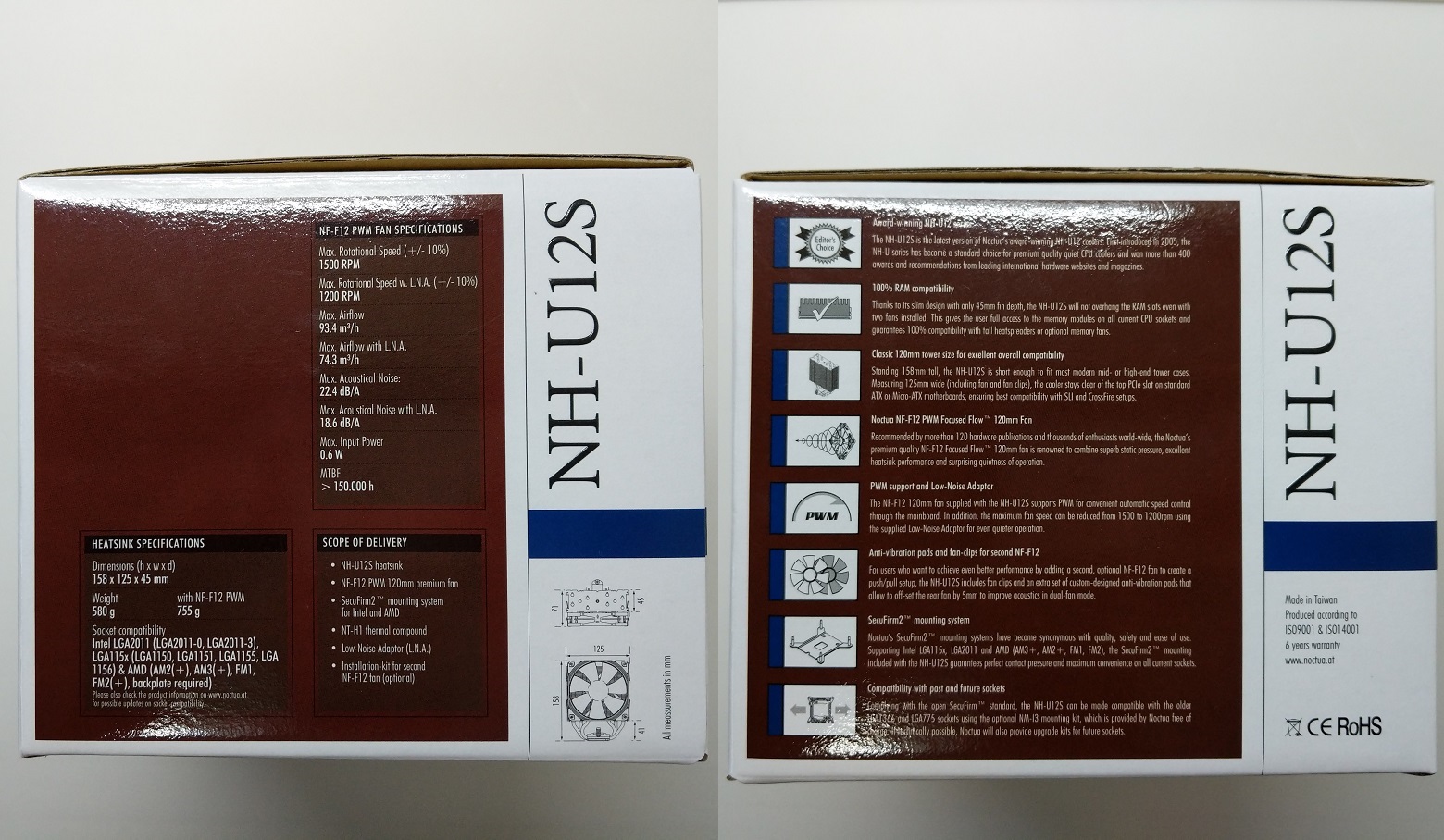
At the back, there are the detailed specification lists of the cooler’s heatsink and the included NF-F12 fan. You can also find short descriptions about a few features of the NH-U12S, such as 100% RAM compatibility and PWM fan control.
The cooler and its accessories are packed in separate boxes, both are protected and secured in place by the cardboard.
The NH-U12S supports both CPU sockets from Intel and AMD with the SecuFirm2 mounting system. Out of the box, you can use the cooler on Intel LGA 2011/2066, LGA 115x and AMD AM1/AM2/AM3 and FM1/2. If you are using AMD AM4 socket, you will need to have the NM-AM4-UxS mounting kit.
Moreover, you get the NT-H1 thermal paste, additional anti-vibration pads and mounting clips for the second NF-F12 fan (not included). There is also an low-noise fan adapter if you want more quiet operation.
Noctua NH-U12S CPU Cooler
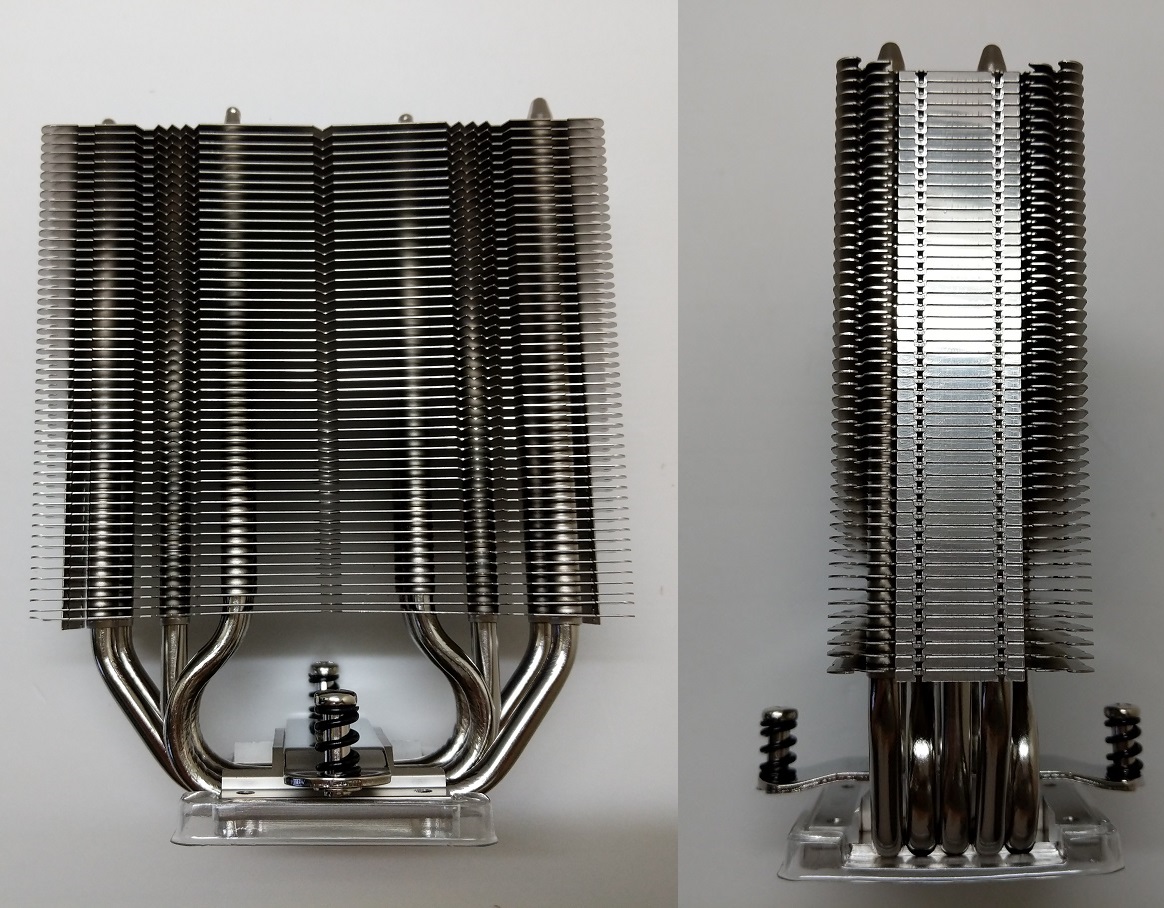
The Noctua NH-U12S cooler uses a traditional single-tower heatsink design, with heatpipes passing through from the bottom to the top in an “U” shape.
Without the fan, the heatsink has a height of 158 mm, a width of 125 mm and a depth of 45 mm. There are five copper-based 6 mm heatpipes on the NH-U12S. They are aligned in six columns to help transfer heat to more parts of the fin stack.
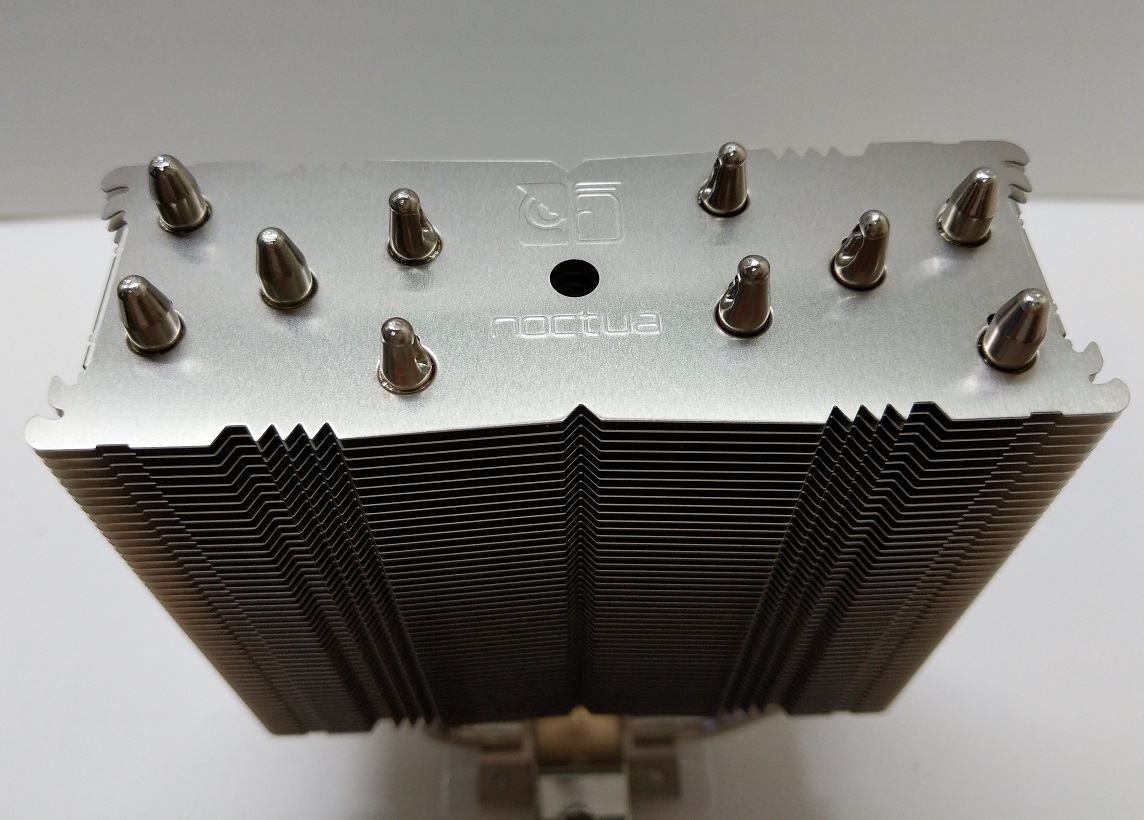
Both ends of the five nickel-plated heatpipes are terminated on the top of the heatsink. A Noctua Logo and name are embossed on the top aluminium fin.
The CPU contact plate is nickel-plated and polished to a mirror-like finish.
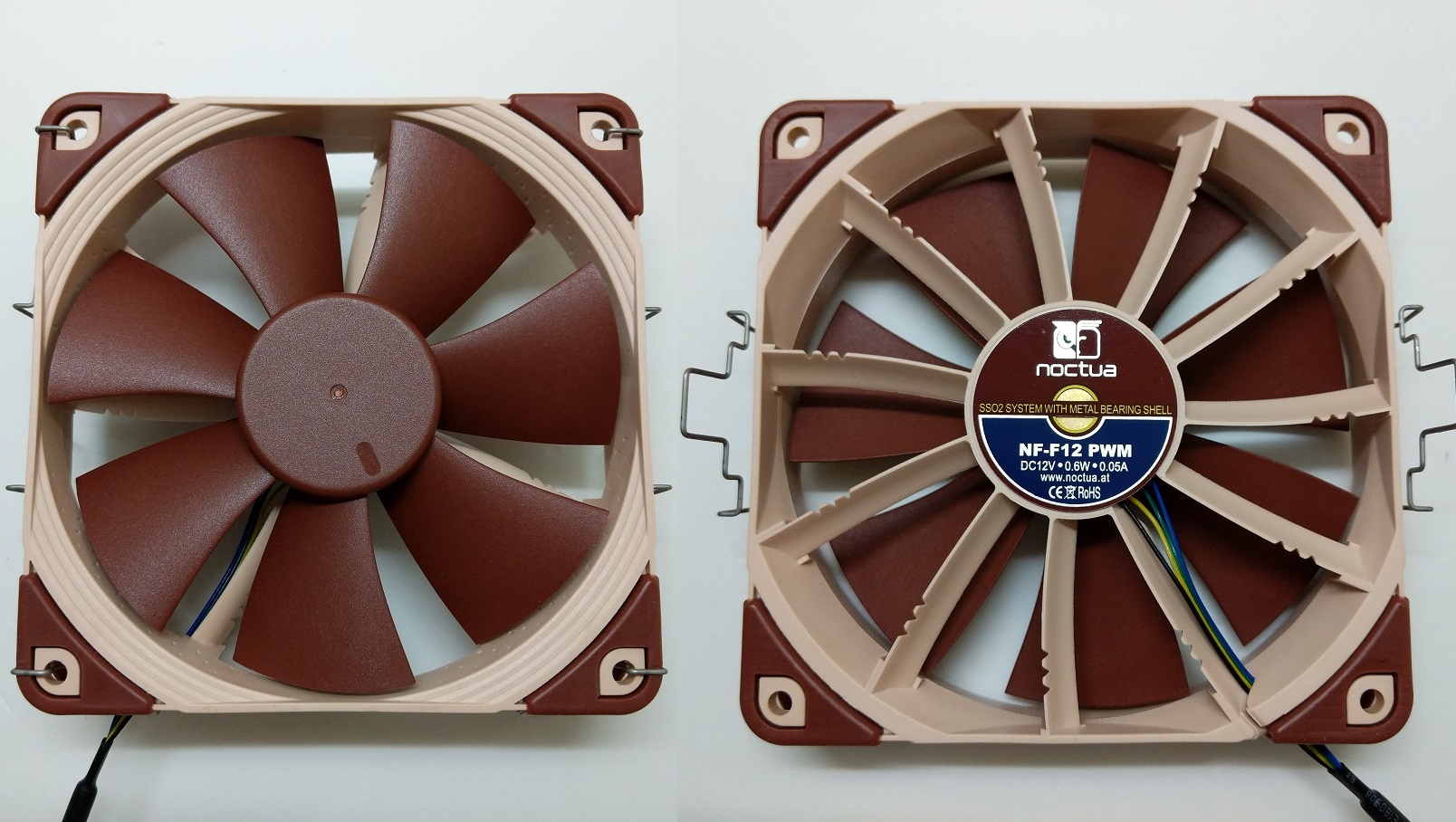
Noctua includes their premium NF-F12 fan for the cooler. The NF-F12 is a 120 mm fan with SSO2 bearing. It has a RPM range from 300 up to 1500. Each corner has installed the anti-vibration pads to reduce noises. The fan has a rated MTBF of over 150,000 hours.
Review
We have updated our CPU cooler tests to more reflect real-world cooling performance of coolers.
Testing Methodology
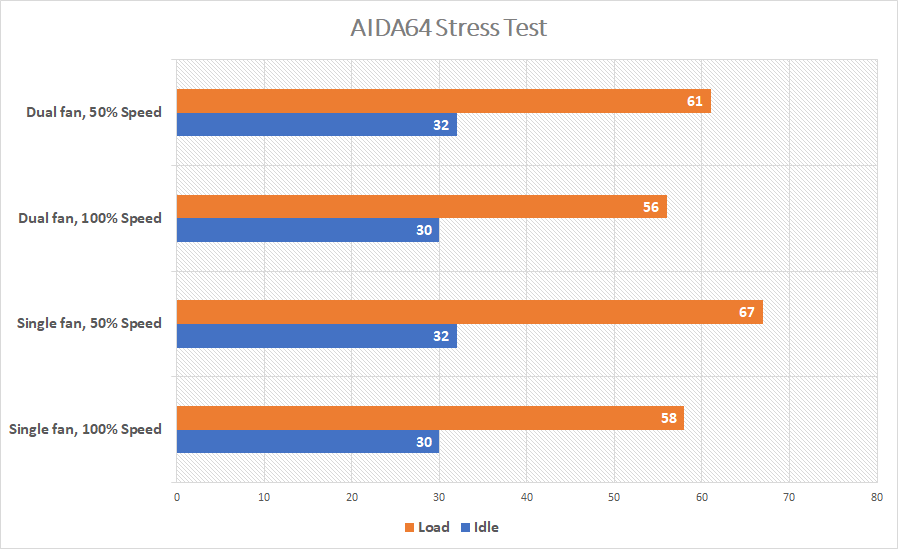
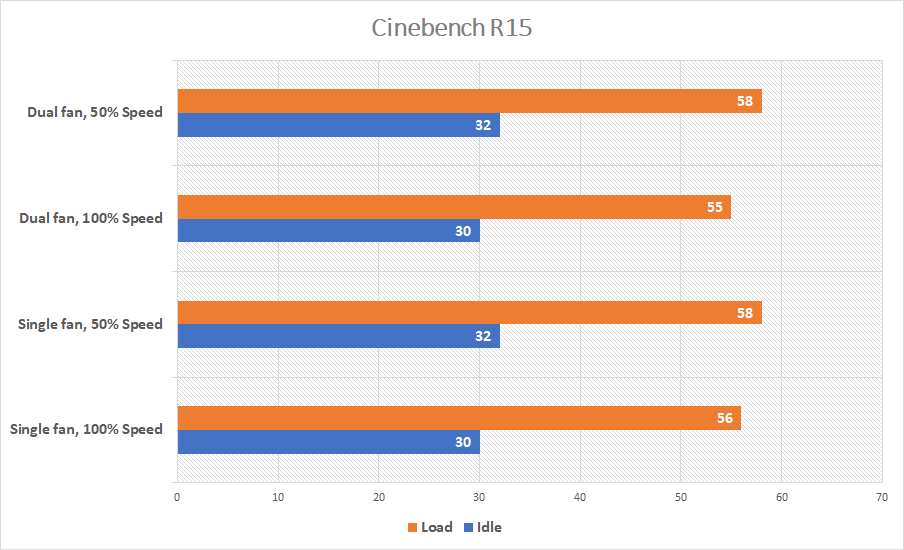
To find out how the cooler performs, a total of two benchmarks are included. AIDA64 is used to run a CPU stress test. CPU, FPU and system cache are all stressed to create as much heat output as possible. Also, Cinebench R15 is used to simulate real-world CPU load (like video-editing or rendering). It will be run continuously for three times. The highest CPU package temperatures are recorded. Ambient temperature is around 26°C.
Results will be taken at a 50% fan speed and 100% speed, controlled via the motherboard CPU PWM fan header. Both single-fan and dual-fan configurations of the cooler will be tested separately.
For a single-tower cooler, the NH-U12S performed exceptionally well. Our Ryzen 5 1600X CPU is kept around 60°C most of the time, when running the AIDA64 stress test. Though the temperature increased to 67°C, if only the single-fan configuration at 50% speed. Adding an additional fan (50% speed) decreased the temperature by 8.96% to 61°C. Spinning up the fan to the maximum speed at around 1400 RPM did help vastly reduce the temperature to 58°C (around 14.4% improvement).
In a more real-world scenario, the NH-U12S provided adequate cooling to the CPU. The lowest temperature is at 55°C, while the highest reached 58°C. All configurations were able to maintain the temperatures under 60°C.
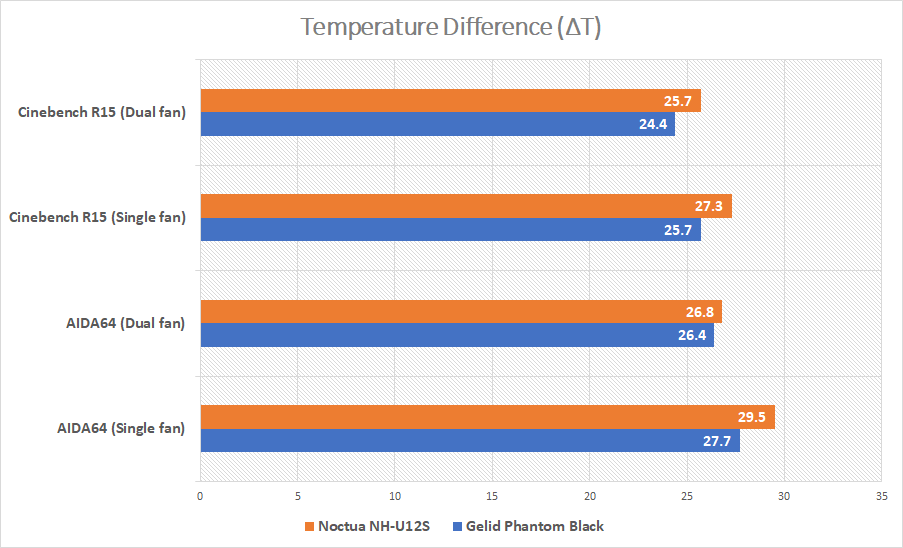
All fans were running at full speed. Results were the temperature differences between the CPU and the ambient room.
Even compared with a dual-tower cooler with much more surface area for heat dissipation, the NH-U12S did not lag behind as much as you may think. The CPU temperatures are generally 1°C to 2°C higher than the GELID Phantom Black. And in some cases, the differences were less than 1°C, which were within the margin of error.
Conclusion
Overall, the Noctua NH-U12S is an all-rounded and compact cooler, that is capable of cooling almost every type of CPUs, including the overclocked one. Its performance is comparable to a larger dual-tower cooler. The single-tower design also offers users great motherboard heatsink and RAM clearance/compatibility. Installation is easy and fast with the SecuFirm 2 mounting system.
The NF-F12 PWM fan is one of the most famous premium fan in the market. It pushes a decent amount of air through the fin stack, while remaining reasonably quiet. I do recommend adding an extra fan and run both fans at lower RPM, to strike a balance between performance and silence.
The NH-U12S is backed by a 6-year warranty as any other Noctua coolers. It is priced at $57.99 USD (MSRP), which offers not only nice build quality and accessories, but also great cooling performance. You do have to pay a little more for the NH-U12S than other similarly-sized air coolers, but I think you would not be disappointed.
You can purchase the cooler from your local/online resellers or the links below from Amazon and Newegg.
Thanks Noctua for providing us the NH-U12S for review. (Review Sample)
Feel free to leave comments below, if you have any opinion about this website. Share the website around if you enjoy reading it. Subscribe to our Newsletter or follow our Google+, Facebook and Twitter.
Support this website simply by shopping in Amazon. It will give us small kickbacks, if you use the above affiliate links to make any purchases, which will help us grow.